When working on an Android project, you might want to include an .aar (Android Archive) file into your module. Adding an .aar to an Android app module is straightforward. However, when trying the same in an Android library module, you’ll encounter issues because the resulting .aar from the library won’t package the embedded .aar correctly. Let’s explore how to handle this properly.
I have an aar called “my-aar-library.aar”, which I want to use in my android library.
Adding a .aar to an Android App Module
- Create a folder (e.g.,
lib) in your app module and place yourmy-aar-library.aarinside.
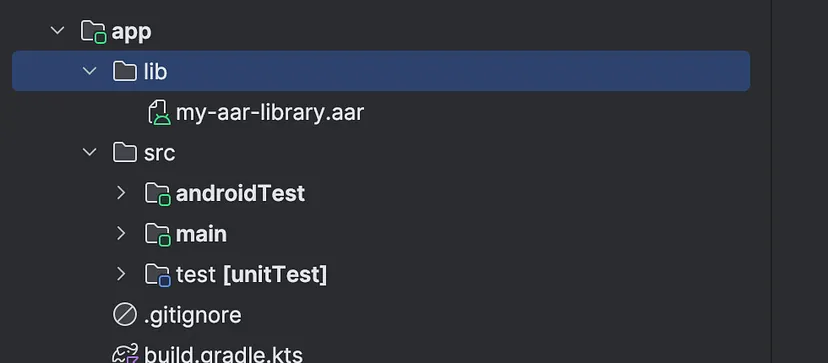
- Update your app module’s
build.gradle.kts
dependencies {
    implementation(files("$projectDir/lib/my-aar-library.aar"))
}
- Sync Gradle and you’re ready to use the classes in the
.aar.
Hurrah, it’s so simple.
Attempting the Same for an Android Library Module
- Add aar in the library module.
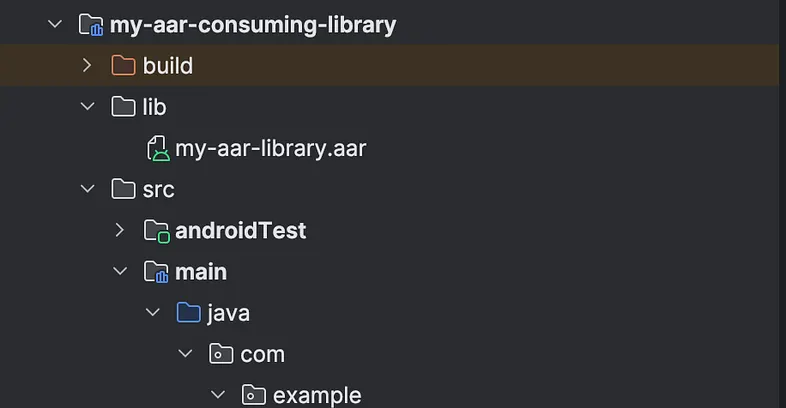
- Add the path to the aar in the dependency block in the build.gradle.kts of the consuming module.
dependencies {
    implementation(files("$projectDir/lib/my-aar-library.aar"))
}
- Sync and build the gradle project.
Alas!! We get the following error.

What’s happening?
As the error suggests, we cannot directly add aar to library modules because the resulting aar of the library would not be packaged properly.
So, what to do.
The Correct Solution: Use the Maven Publish Plugin
Instead of directly adding the .aar, we need to publish it to a Maven repository (local or remote) and then consume it from there.
- In a separate publishing module or your root project’s
build.gradle.kts, add:
plugins {
    `maven-publish`
}

publishing {
    publications {
        create<MavenPublication>("maven") {

            groupId = "com.my-aar"
            artifactId = "library"
            version = "1.0"

            artifact(file("$projectDir/app/lib/my-aar-library.aar"))
        }

        repositories {
            maven {
                url = uri(file("$rootDir/repo"))
            }
        }
    }
}
The groupId, artifactId and version can be anything you want. Just keep it sensible and simple. We will be using the “groupId:artifactId:version” format to include the aar into our library.
The artifact() function takes in the file that we want to publish. In our case, its the aar file that we want to use in our library.
The repositories block can be used to configure where to publish our aar. In our case, we are gonna publish it to repo directory of our project directory.
- From your terminal, run the following command.
./gradlew publish
This publishes your .aar along with metadata (POM, checksums) into $rootDir/repo.
-
You will have the following files in the repo folder.
-
Configure the Local Maven Repository
In your settings.gradle.kts, set your folder to be a maven repository.
dependencyResolutionManagement {
    repositories {
        maven {
            // The path where you published the aar.
            url = uri("$rootDir/repo")
        }
        // Add other repositories like Google or Maven Central
    }
}
Now, Gradle knows to look in your local repo folder for dependencies.
- In the
build.gradle.ktsof your consuming library module:
dependencies {
    implementation("com.my-aar:library:1.0")
}
The com.my-aar:library:1.0 is my maven coordinates or maven GAV for my published artifact. It’s the same that you used to configure maven-publish when publishing the aar. The maven coordinates is of the formgroupId:artifactId:version
- Voila, we’ve published the AAR to a local directory, set it up as a Maven repository, and integrated the artifacts into our library.
Some Caveats
- You can configure Maven publishing either in your root project’s
build.gradle.ktsor, for a cleaner separation of concerns, you can set up a dedicated module solely for publishing the.aar. This way, your library’s build logic stays clean and you can manage publishing independently. - If you plan to distribute your library, publish the
.aarto a remote Maven repository (e.g., GitHub Packages, Artifactory, Maven Central). - If your
.aardepends on other libraries, you’ll need to ensure the generated POM reflects those dependencies, or else consumers might face missing dependencies.
Maven Repository Options
When ready to publish remotely, consider:
- Maven Central (Sonatype OSSRH): Free for open-source, widely used.
- GitHub Packages: Easy to set up if your project is on GitHub.
- JFrog Artifactory / GitLab Packages: Great for enterprise and private projects.
Why Maven?
Library modules produce their own .aar artifacts, and Gradle doesn’t support merging prebuilt .aar files into these outputs. Maven publishing solves this by treating your .aar as a proper dependency with metadata.
Summary
Adding an .aar to an app module works with files(…), but adding an .aar to a library module requires publishing to a Maven repository (local or remote). By using Maven Publish Plugin, we:
- Publish the .aar to a local Maven repository.
- Configure the project to resolve dependencies from that repository.
- Reference the artifact with its GAV coordinates
groupId:artifactId:version.